Replace Your Spreadsheet for COI Tracking: Migration Guide
Tracking certificates of insurance in spreadsheets feels manageable at first. But as your vendor list grows, manual COI tracking becomes a time-consuming liability. This guide shows you exactly how to replace spreadsheet for COI tracking with automated software, including step-by-step migration instructions, data preparation tips, and best practices to ensure a smooth transition.

Replace Your Spreadsheet for COI Tracking: Complete Migration Guide
Tracking certificates of insurance in spreadsheets feels manageable at first. But as your vendor list grows, manual COI tracking becomes a time-consuming liability. This guide shows you exactly how to replace spreadsheet for COI tracking with automated software, including step-by-step migration instructions, data preparation tips, and best practices to ensure a smooth transition.
You'll learn how to audit your current spreadsheet system, choose the right COI tracking platform, migrate your data without losing critical information, and implement automation that saves hours every week. Whether you manage 50 vendors or 500, this migration guide helps you move from manual spreadsheets to modern compliance management.
Table of Contents
- Why Spreadsheets Fail for COI Tracking
- Step-by-Step Migration Process
- Best Practices for Successful Migration
- Common Migration Mistakes to Avoid
- Key Takeaways
Why Spreadsheets Fail for COI Tracking
Spreadsheets work well for simple data storage, but certificate of insurance tracking requires more than basic rows and columns. Understanding why your current system struggles helps you appreciate the value of dedicated COI tracking software and motivates a successful migration.
Manual Data Entry Creates Errors
Every certificate you manually enter into a spreadsheet introduces potential for human error. Typos in policy numbers, incorrect coverage amounts, and wrong expiration dates create compliance gaps. When you're entering data from dozens of certificates weekly, these errors compound quickly.
Modern COI tracking platforms use AI-powered parsing technology to extract data directly from ACORD forms. This eliminates manual transcription and reduces data entry errors by up to 95%. The time savings alone justify the switch from spreadsheets to automated systems, as detailed in our comparison at Coi Tracking Roi Manual Vs Automated which shows the true cost of manual processes.
No Automated Expiration Alerts
Spreadsheets can't send automatic notifications when certificates approach expiration. You must manually check dates, create reminder systems, and follow up with vendors. This reactive approach means expired certificates slip through the cracks, exposing your business to liability.
Automated COI tracking software monitors every certificate and sends alerts 30, 60, and 90 days before expiration. Some platforms even send renewal requests directly to vendors, eliminating the need for you to track down updated certificates. This proactive approach ensures continuous compliance without constant manual oversight.
Limited Collaboration and Version Control
Multiple team members working in the same spreadsheet creates version control nightmares. Someone overwrites critical data, another person works from an outdated copy, and no one knows which version contains accurate information. This chaos increases as your team grows.
Cloud-based COI platforms provide real-time collaboration with role-based permissions, audit trails, and automatic version history. Everyone works from the same updated data, and you can track exactly who made changes and when. This transparency improves accountability and reduces conflicts.
No Document Storage Integration
Spreadsheets store data but not the actual certificate PDFs. You end up maintaining separate folder systems, email archives, or cloud storage locations. Finding a specific certificate requires searching multiple places, and linking documents to spreadsheet rows becomes an organizational challenge.
Dedicated platforms store certificate images alongside extracted data, creating a single source of truth. Click any vendor record to instantly view their current certificate, historical documents, and communication history. This integration saves hours of searching and ensures you always have proof of coverage.
Difficult Compliance Reporting
Generating compliance reports from spreadsheets requires manual filtering, pivot tables, and custom formulas. Creating reports for audits, board meetings, or stakeholder reviews becomes a multi-hour project. The effort required discourages regular compliance monitoring.
Modern COI software generates instant compliance reports with one click. View which vendors have expired certificates, upcoming renewals, missing coverage requirements, or compliance trends over time. These insights help you stay ahead of issues rather than reacting to problems after they occur.
Step-by-Step Migration Process to Replace Spreadsheet for COI Tracking
Successfully migrating from spreadsheets to automated COI tracking requires careful planning and systematic execution. Follow these detailed steps to ensure a smooth transition without losing data or disrupting your compliance workflows.
Step 1: Audit Your Current Spreadsheet System
Before migrating, understand exactly what data you're working with. Open your COI tracking spreadsheet and document these key elements:
- Total number of vendor records
- Data fields you're currently tracking (vendor name, policy numbers, coverage limits, expiration dates, etc.)
- How many certificates are currently expired
- Where certificate PDFs are stored
- Custom fields or notes specific to your business
- Who currently accesses and updates the spreadsheet
This audit reveals data quality issues you'll need to address before migration. Look for incomplete records, inconsistent formatting, duplicate entries, and missing information. Clean data migrates more smoothly and reduces post-migration cleanup work.
Step 2: Choose Your COI Tracking Software
Not all COI tracking platforms offer the same features or migration support. Evaluate options based on these critical criteria:
- Data import capabilities (CSV upload, bulk import, API integration)
- Automated certificate parsing and data extraction
- Customizable expiration alerts and renewal workflows
- Vendor portal for self-service certificate uploads
- Compliance reporting and dashboard analytics
- Integration with your existing systems (CRM, accounting, project management)
- Migration assistance and onboarding support
- Pricing that fits your budget and vendor volume
Request demos from multiple providers and test their import processes with a sample of your spreadsheet data. Our guide at Coi Tracking Software Under 100 Month compares affordable options perfect for small to mid-size businesses making the switch from spreadsheets.
Step 3: Clean and Standardize Your Data
Data quality directly impacts migration success. Spend time cleaning your spreadsheet before importing to avoid issues in your new system. Focus on these cleanup tasks:
Standardize vendor names to eliminate duplicates. "ABC Construction," "ABC Construction Inc," and "ABC Construction Company" should become one consistent entry. Remove special characters that might cause import errors.
Format dates consistently using a standard format like MM/DD/YYYY or YYYY-MM-DD. Mixed date formats confuse import tools and create data mapping problems. Verify all expiration dates are accurate and in the future for active policies.
Standardize coverage amounts and policy limits. Convert all values to the same unit (dollars, not mixed with "1M" and "$1,000,000"). Remove currency symbols and commas that might interfere with numeric field imports.
Complete missing information wherever possible. Contact vendors to fill gaps in policy numbers, coverage types, or contact information. The more complete your data before migration, the less cleanup you'll need afterward.
Remove unnecessary columns and notes that won't transfer to your new system. Keep only the data fields that map to your chosen platform's import template. This simplifies the import process and reduces confusion.
Step 4: Map Spreadsheet Fields to Platform Fields
Your COI tracking software will have specific field names and data structures. Create a mapping document that shows how your spreadsheet columns correspond to platform fields:
- Vendor Name → Company Name
- GL Policy Number → General Liability Policy #
- Expiration Date → Policy Expiration
- Coverage Amount → Per Occurrence Limit
- Contact Email → Primary Contact Email
Most platforms provide import templates or field mapping tools during setup. Download the template, review required fields versus optional fields, and adjust your spreadsheet columns to match. This preparation prevents data from landing in wrong fields during import.
Step 5: Perform a Test Migration
Never migrate your entire database at once. Start with a small test batch of 10-20 vendor records to identify issues before they affect your complete dataset. Export a subset of your spreadsheet and import it into your new platform.
After the test import, verify every field mapped correctly. Check that dates display properly, coverage amounts are accurate, vendor names appear complete, and contact information is in the right fields. Look for any data that didn't import or ended up in unexpected locations.
Test the platform's core functions with your imported data. Can you search for vendors quickly? Do expiration alerts trigger correctly? Can you generate compliance reports? Does the vendor portal work for certificate uploads? This functional testing reveals whether your data works properly in the new system.
Document any issues you discover and adjust your spreadsheet or mapping accordingly. Repeat test imports until everything works perfectly. This iterative approach prevents large-scale problems during your full migration.
Step 6: Import Your Complete Dataset
Once your test migration succeeds, proceed with importing your full vendor database. Choose a time when your team isn't actively working in the spreadsheet to avoid missing recent updates. Weekend migrations often work best for this reason.
Export your complete, cleaned spreadsheet as a CSV file. Follow your platform's import process, uploading the file and confirming field mappings. Most systems show a preview before final import, giving you one last chance to catch errors.
Monitor the import progress and review any error messages. Some platforms flag problematic records for manual review rather than rejecting the entire import. Address these flagged records individually after the bulk import completes.
After import completes, verify your record count matches. If you had 347 vendors in your spreadsheet, you should see 347 vendor records in your new system. Spot-check 20-30 random records to ensure data accuracy across different vendor types and coverage scenarios.
Step 7: Upload Historical Certificate Documents
Your spreadsheet tracked data, but your certificate PDFs live elsewhere. Now link these documents to their corresponding vendor records in your new platform. This creates a complete historical archive accessible from one location.
Organize your certificate files before uploading. Rename PDFs with a consistent naming convention like "VendorName_CertificateType_Date.pdf" to make them easier to match with vendor records. Group certificates by vendor if your platform supports bulk uploads per vendor.
Some advanced platforms offer AI-powered document matching that automatically links uploaded certificates to existing vendor records. If your system has this feature, batch upload all certificates and let the software handle matching. Otherwise, upload documents manually to each vendor profile.
Prioritize uploading current certificates first, then add historical documents as time allows. Having current coverage documentation accessible immediately is more critical than complete historical archives. You can backfill older certificates during slower periods.
Step 8: Configure Automated Workflows
The real power of replacing spreadsheet for COI tracking comes from automation. Configure these essential workflows to eliminate manual work:
Set up expiration alerts to notify you 90, 60, and 30 days before certificates expire. Customize notifications by coverage type if certain policies require more attention. Configure who receives alerts based on vendor relationships or project assignments.
Create automated renewal request emails that send directly to vendors when certificates approach expiration. Include your specific requirements, upload instructions, and deadline information. This proactive outreach reduces last-minute scrambling for updated certificates.
Enable vendor portal access so contractors and service providers can upload certificates themselves. Share unique portal links with each vendor and provide simple instructions. Self-service uploads dramatically reduce your administrative workload and speed up certificate collection.
Configure compliance requirement templates for different vendor types. Contractors need general liability and workers compensation, while consultants require professional liability. Template-based requirements ensure consistency and make onboarding new vendors faster. Learn more about automating these processes at How To Automate Coi Tracking which covers advanced automation strategies.
Step 9: Train Your Team
Technology only works when people use it correctly. Schedule training sessions for everyone who will interact with your new COI tracking system. Cover these essential topics:
- How to search for and view vendor certificates
- Adding new vendors and uploading certificates
- Reviewing and approving vendor-submitted certificates
- Generating compliance reports for audits or reviews
- Responding to expiration alerts and following up with vendors
- Using mobile apps if available for field access
Create quick reference guides and video tutorials for common tasks. Team members can refer to these resources when they forget specific steps. Designate a system administrator who becomes the expert and helps colleagues with questions.
Encourage team members to explore the platform during a grace period where the spreadsheet remains available as backup. This parallel operation reduces anxiety about losing data and builds confidence in the new system before fully retiring the spreadsheet.
Step 10: Run Parallel Systems Briefly
Maintain your spreadsheet as read-only backup for 30-60 days after migration. This safety net lets you verify the new system works correctly before permanently retiring the old method. During this period, make all updates in the new platform only.
Compare data between systems weekly to catch any discrepancies. If vendors submit new certificates, ensure they appear in the new platform. Verify expiration alerts trigger correctly and renewal workflows function as expected.
After the parallel period, archive your spreadsheet with a clear date stamp. Keep this archive accessible for historical reference but communicate clearly that it's no longer the active system. Update any documentation, procedures, or policies to reference only the new platform.
Best Practices for Successful Migration
Following these proven best practices helps you replace spreadsheet for COI tracking smoothly and maximize the value of your new system from day one.
Start with High-Priority Vendors
If you have hundreds of vendors, prioritize migration by risk level and activity. Active contractors working on current projects need immediate attention. Vendors with upcoming certificate expirations require quick migration to avoid gaps. Inactive vendors from years ago can wait.
Create a prioritization matrix based on vendor activity, contract value, and compliance risk. Migrate your top 20% of critical vendors first, ensuring your highest-risk relationships have proper coverage tracking immediately. This phased approach delivers value quickly while spreading the migration workload.
Document Your Requirements Clearly
Use your new platform to codify insurance requirements that were previously tribal knowledge or scattered across contracts. Create standard requirement templates for each vendor category: general contractors, subcontractors, consultants, suppliers, and service providers.
Document minimum coverage amounts, required policy types, additional insured requirements, and waiver of subrogation needs. Store these requirements in your platform where they automatically apply to vendor profiles. This standardization ensures consistent compliance across all relationships. Our comprehensive guide at What Is Additional Insured explains additional insured requirements in detail.
Communicate Changes to Vendors
Your vendors need to know you're changing how you collect and track certificates. Send a clear announcement explaining the new process, benefits for them (easier submissions, fewer follow-ups), and what actions they need to take.
Provide simple instructions for accessing your vendor portal with screenshots or video walkthrough. Include your contact information for questions. Emphasize that the new system makes certificate submission faster and reduces the back-and-forth emails that frustrated everyone previously.
Establish Data Governance Policies
Create clear policies for who can add vendors, approve certificates, and modify requirements. Define data entry standards to maintain consistency. Assign ownership for different vendor categories or business units.
Schedule regular data quality audits to catch errors before they compound. Review vendor records quarterly to remove duplicates, update contact information, and archive inactive vendors. Good data governance prevents your new system from becoming as messy as your old spreadsheet.
Leverage Integration Opportunities
Modern COI tracking platforms integrate with other business systems. Connect your platform to your CRM to sync vendor information automatically. Link to your project management software so certificate status appears alongside project details. Integrate with accounting systems to block payments for vendors with expired coverage.
These integrations eliminate duplicate data entry and ensure certificate compliance flows naturally into your existing workflows. Explore available integrations during platform selection to maximize automation across your entire tech stack.
Monitor Adoption and Usage
Track how your team uses the new system during the first few months. Review login frequency, certificate upload rates, and report generation activity. Low usage indicates training gaps or workflow issues that need addressing.
Gather feedback from users about what works well and what feels confusing. Adjust your processes based on real-world usage patterns. Celebrate wins when the system catches an expired certificate or automates a task that previously took hours.
Common Mistakes to Avoid When You Replace Spreadsheet for COI Tracking
Learning from others' migration mistakes saves you time and frustration. Avoid these common pitfalls that derail transitions from spreadsheets to automated COI tracking.
Migrating Dirty Data
The biggest mistake is importing messy spreadsheet data without cleaning it first. Duplicate vendors, inconsistent formatting, incomplete records, and outdated information create problems that multiply in your new system. Garbage in equals garbage out.
Invest time cleaning data before migration, not after. Fixing issues in a spreadsheet is faster than correcting problems across a new platform's database. Your future self will thank you for this upfront work when your system runs smoothly from day one.
Skipping the Test Migration
Importing your entire vendor database without testing creates massive problems when something goes wrong. Field mapping errors, date format issues, or character encoding problems affect every record, requiring extensive manual cleanup.
Always test with a small sample first. Fix issues at small scale, then proceed with confidence to full migration. This iterative approach prevents catastrophic errors and ensures your data lands correctly.
Inadequate Team Training
Assuming your team will figure out the new system without training leads to low adoption and continued spreadsheet use. People revert to familiar tools when new systems feel confusing or time-consuming.
Provide comprehensive training before go-live. Create ongoing support resources and designate super users who can help colleagues. Make the new system so easy and beneficial that team members prefer it over spreadsheets.
Ignoring Vendor Communication
Changing your certificate collection process without telling vendors creates confusion and delays. Contractors continue emailing certificates to old addresses or contacts, and these submissions get lost during the transition.
Proactively communicate the change to all active vendors. Provide clear instructions and support during the transition. Set up email forwarding from old certificate submission addresses to your new platform to catch stragglers who miss the announcement.
Rushing the Migration Timeline
Trying to complete migration in a few days creates stress and increases error likelihood. Rushing through data cleanup, skipping testing, and inadequate training all stem from unrealistic timelines.
Plan for 4-8 weeks from platform selection to full cutover, depending on your vendor volume. This timeline allows proper data preparation, thorough testing, comprehensive training, and a parallel operation period. Quality migration takes time.
Not Configuring Automation
Simply moving data from spreadsheets to software without enabling automation features wastes the platform's potential. You're still manually checking expirations, sending renewal requests, and chasing vendors for certificates.
Configure all available automation during initial setup. Enable expiration alerts, automated renewal requests, vendor portal access, and compliance reporting. The goal is to replace spreadsheet for COI tracking AND eliminate manual work, not just digitize your current process. Understanding the ROI of automation helps justify the investment, as shown in our analysis at Manual Vs Automated Coi Tracking which breaks down time savings and cost reductions.
Failing to Archive Historical Data
Deleting your old spreadsheet immediately after migration eliminates your historical reference and backup. If questions arise about past certificates or data discrepancies appear, you have no way to verify information.
Archive your spreadsheet with a clear date stamp and store it securely. Keep it accessible but read-only for at least 12 months after migration. This safety net provides peace of mind and historical reference without encouraging continued use.
Key Takeaways
- Spreadsheets fail for COI tracking due to manual data entry errors, lack of automated alerts, limited collaboration, no document storage integration, and difficult compliance reporting
- Successful migration requires auditing your current system, cleaning data thoroughly, testing with small batches, and training your team before full cutover
- Choose COI tracking software based on import capabilities, automated parsing, customizable workflows, vendor portal features, and integration options
- Prioritize high-risk, active vendors for migration first to deliver immediate compliance value while spreading the workload over time
- Configure automation features like expiration alerts, renewal requests, and vendor portals to eliminate manual work and maximize ROI
- Communicate process changes clearly to vendors with simple instructions for submitting certificates through your new system
- Avoid common mistakes including migrating dirty data, skipping test imports, inadequate training, and rushing the timeline
- Run parallel systems for 30-60 days to verify accuracy before permanently retiring your spreadsheet
- Establish data governance policies and conduct regular audits to maintain system quality over time
- Plan 4-8 weeks for complete migration from platform selection through full cutover depending on vendor volume
Related Resources
- Free COI Tracking Spreadsheet Template (+ Why You'll Outgrow It) — Download a ready-to-use spreadsheet template and understand its limitations before migrating to automated software. Free Coi Tracking Spreadsheet Template
- Excel vs Software for Certificate Management — Compare the true costs, time investment, and risk factors of spreadsheet versus dedicated COI tracking platforms. Excel Vs Software Coi Tracking
- Manual vs Automated COI Tracking: Complete Comparison Guide — See detailed breakdowns of time savings, cost analysis, and ROI calculations for automated systems. Manual Vs Automated Coi Tracking
- How to Automate COI Tracking in 4 Simple Steps — Learn advanced automation strategies including AI parsing, workflow triggers, and integration options. How To Automate Coi Tracking
- Best COI Tracking Software Under $100/Month — Review affordable platforms perfect for small businesses transitioning from spreadsheets. Coi Tracking Software Under 100 Month
Frequently Asked Questions
How long does it take to migrate from spreadsheets to COI tracking software?
Plan for 4-8 weeks for complete migration depending on your vendor volume and data quality. This timeline includes platform selection (1-2 weeks), data cleanup and preparation (1-2 weeks), test migration and adjustments (1 week), full import and configuration (1 week), team training (1 week), and parallel operation period (2-4 weeks). Rushing this process increases error risk and reduces adoption success.
Smaller organizations with under 100 vendors and clean data can complete migration faster, potentially in 2-3 weeks. Larger companies with complex requirements, multiple business units, or messy historical data may need 10-12 weeks for thorough migration. Allocate time based on your specific situation rather than arbitrary deadlines.
What happens to my historical certificate data during migration?
Your historical data transfers to the new platform during import. Current vendor information, active certificates, and recent expiration dates migrate first as priority data. Historical certificates from inactive vendors or expired policies can be uploaded later as time allows, since they're less critical for ongoing compliance.
Most platforms store unlimited historical documents, creating a complete audit trail accessible from each vendor record. You can upload certificate PDFs in bulk or individually after data import. Some advanced systems offer AI-powered document matching that automatically links uploaded certificates to existing vendor profiles. Keep your original spreadsheet archived as backup reference for at least 12 months post-migration.
Do I need to notify vendors when I replace spreadsheet for COI tracking?
Yes, communicate the change to all active vendors before your system goes live. Send a clear email explaining the new certificate submission process, benefits for them, and specific actions they need to take. Include vendor portal login instructions with screenshots or video walkthrough to make adoption easy.
Emphasize how the new system benefits vendors: easier certificate uploads, fewer follow-up emails, automated renewal reminders, and faster approval processes. Provide support contact information for questions. Set up email forwarding from your old certificate submission address to catch submissions from vendors who miss the announcement. Good communication prevents delays and ensures smooth transition for everyone involved.
Can I migrate data in phases rather than all at once?
Phased migration works well for large vendor databases. Start with high-priority vendors like active contractors, vendors with upcoming expirations, or those working on critical projects. This approach delivers immediate compliance value while spreading the workload over several weeks or months.
Create a prioritization matrix based on vendor activity level, contract value, and compliance risk. Migrate your top 20-30% of critical vendors first, ensuring your highest-risk relationships have proper tracking immediately. Add medium-priority vendors over the next 4-6 weeks. Migrate inactive or low-risk vendors last, or only as needed when they become active again. Phased migration reduces overwhelm and allows you to refine your process with each batch.
What if my spreadsheet has custom fields not available in the software?
Most COI tracking platforms offer custom fields to accommodate unique business requirements. During platform evaluation, discuss your specific data needs with vendors to ensure they can support your custom tracking requirements. Many systems allow unlimited custom fields for vendor profiles, certificates, or projects.
If certain custom data doesn't fit standard fields, you have several options: use notes sections for free-form information, create custom field categories within the platform, or maintain a supplementary reference document for truly unique data points. Evaluate whether all your custom spreadsheet fields are actually necessary—many organizations discover they're tracking data that's rarely used. Focus migration on fields that support active compliance decisions rather than historical curiosities.
Conclusion
The decision to replace spreadsheet for COI tracking represents a significant upgrade in how you manage vendor compliance. While spreadsheets served you initially, they can't scale with your growing vendor relationships or provide the automation and oversight modern businesses require.
Following this migration guide ensures a smooth transition from manual tracking to automated compliance management. Clean your data thoroughly, test carefully, train your team comprehensively, and configure automation features that eliminate repetitive work. The upfront investment in proper migration pays dividends through reduced administrative burden, improved compliance rates, and eliminated risk exposure.
Your vendors will appreciate easier certificate submission through self-service portals. Your team will save hours previously spent chasing expired certificates and manually tracking renewals. Your organization gains confidence that every vendor relationship maintains proper insurance coverage without gaps or oversights.
Start your free trial of PolicyManagerHub today and experience automated COI tracking that saves time while improving compliance. Our migration specialists help you transition from spreadsheets seamlessly, ensuring your data transfers correctly and your team adopts the new system confidently. Automate your COI tracking in minutes and eliminate the manual work holding your business back.
CoverLedger Editorial Team
Expert insights on insurance compliance, COI tracking, and risk management from the CoverLedger team.
Related Articles

Construction Project Insurance Coverage Layers
Construction projects involve significant financial risk, complex liability exposures, and multiple parties working simultaneously. Understanding construction project insurance coverage layers is essential for protecting your business from catastrophic losses. This comprehensive guide explains how insurance layers work, why they matter, and how to structure adequate protection for projects of any size.

Subcontractor Insurance: What GCs Need to Verify
As a general contractor, you face significant liability exposure when subcontractors work on your projects. Without proper insurance verification, you could be held responsible for accidents, property damage, or injuries caused by subs. This comprehensive guide covers everything about subcontractor insurance: what GCs need to verify to protect their business, reduce risk, and maintain compliance.
Insurance Requirements for General Contractors
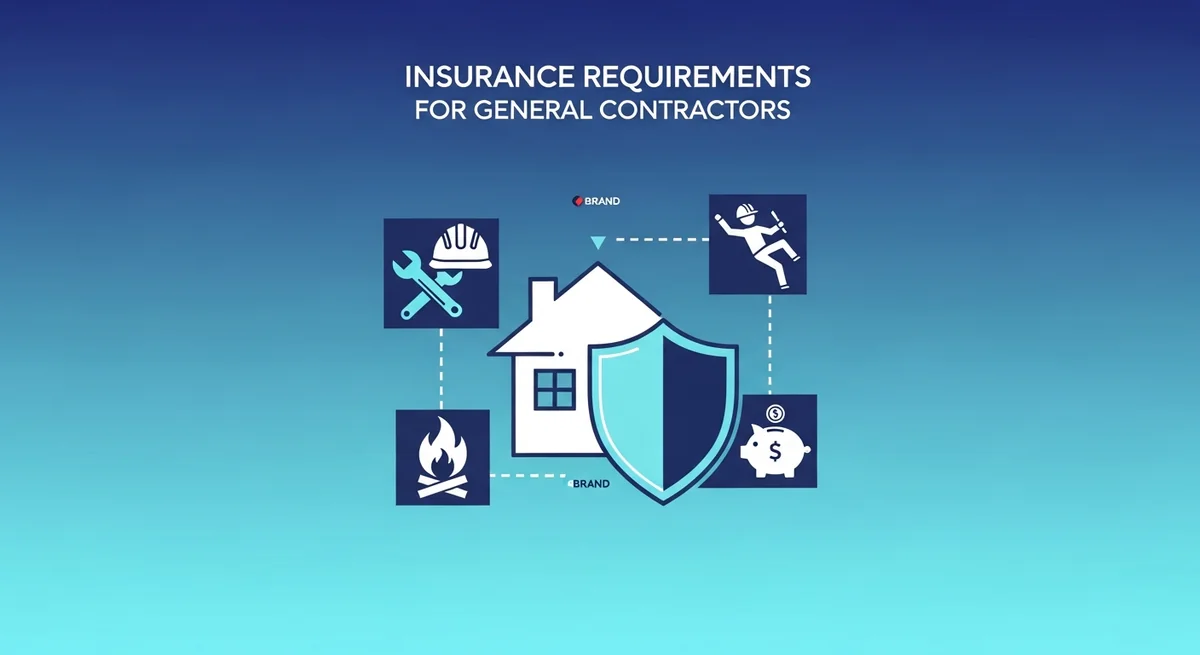
General contractors face unique liability exposures that require comprehensive insurance coverage. Whether you're building residential homes, commercial properties, or managing multiple subcontractors, understanding insurance requirements for general contractors is essential to protect your business, comply with contracts, and avoid costly gaps in coverage.