How to Track Certificate of Insurance in HubSpot (Complete Guide)
Managing certificates of insurance (COIs) in HubSpot can transform your vendor compliance process from chaotic to streamlined. While HubSpot excels at CRM and contact management, tracking COI expirations, coverage requirements, and compliance status requires a strategic setup. This guide shows you exactly how to track certificate of insurance in HubSpot, from initial configuration to automated workflows that keep your business protected.

How to Track Certificate of Insurance in HubSpot (Complete Guide)
Managing certificates of insurance (COIs) in HubSpot can transform your vendor compliance process from chaotic to streamlined. While HubSpot excels at CRM and contact management, tracking COI expirations, coverage requirements, and compliance status requires a strategic setup. This guide shows you exactly how to track certificate of insurance in HubSpot, from initial configuration to automated workflows that keep your business protected.
By the end of this tutorial, you'll have a functional COI tracking system that alerts you before certificates expire, maintains compliance records, and integrates seamlessly with your existing HubSpot workflows. Whether you manage 10 vendors or 1,000, this system scales with your needs.
What You'll Need
Before you begin setting up COI tracking in HubSpot, ensure you have:
- HubSpot Professional or Enterprise account (required for custom properties and workflows)
- Admin access to create custom objects and properties
- Your company's COI requirements documented (coverage types, minimum limits)
- Existing vendor list with contact information
- File storage for certificate PDFs (HubSpot Files or external storage)
Time Required and Difficulty Level
Initial setup: 2-4 hours for a complete system
Difficulty: Intermediate (requires HubSpot workflow knowledge)
Ongoing maintenance: 15-30 minutes per week once automated
Step 1: Create Custom Properties for COI Data
The foundation of tracking certificates of insurance in HubSpot starts with custom properties. Navigate to Settings > Properties and select the Company object (or Deals if you track COIs per project).
Create these essential properties:
- COI Status (dropdown: Current, Expiring Soon, Expired, Not Received, Under Review)
- COI Expiration Date (date picker)
- General Liability Limit (number field, formatted as currency)
- Workers Compensation (checkbox: Yes/No)
- Additional Insured Status (checkbox: Yes/No)
- Certificate Holder Correct (checkbox: Yes/No)
- Last COI Review Date (date picker)
- COI Document Link (single-line text for file URL)
For each property, add field-level help text explaining what information belongs there. This ensures team consistency when manual data entry is required. Understanding what information belongs on certificates helps prevent errors, as detailed in our guide on Common Mistakes On Certificates Of Insurance which covers the most frequent issues businesses encounter.
Step 2: Set Up a COI Request Email Template
Navigate to Marketing > Email > Templates and create a new template specifically for certificate requests. This standardizes your communication and ensures vendors receive clear instructions.
Your template should include:
- Your company name and address (for certificate holder section)
- Required coverage types and minimum limits
- Additional insured requirement (if applicable)
- Waiver of subrogation requirement (if applicable)
- Submission deadline
- Upload instructions or email address for submission
Use personalization tokens like {{company.name}} to auto-populate vendor information. Include a clear subject line such as "Insurance Certificate Required for {{company.name}} - Action Needed." For comprehensive guidance on requesting certificates properly, see How To Request Certificate Of Insurance which provides templates and best practices.
Step 3: Build a COI Tracking Dashboard
Create a custom dashboard to monitor certificate status at a glance. Go to Reports > Dashboards > Create Dashboard and name it "COI Compliance Tracker."
Add these report types:
- Single Object Report: Companies filtered by "COI Status = Expired" (shows immediate action items)
- Single Object Report: Companies with "COI Expiration Date" in next 30 days (proactive monitoring)
- Donut Chart: Breakdown of all companies by COI Status (visual overview)
- Single Object Report: Companies where "COI Status = Not Received" (follow-up list)
Configure each report to display key fields: Company Name, COI Status, Expiration Date, Last Review Date, and Owner. Set the dashboard to refresh daily so your team always sees current data. Pin this dashboard to your HubSpot homepage for quick access.
Step 4: Create Automated Workflows for Expiration Alerts
Automation is where HubSpot COI tracking becomes powerful. Navigate to Automation > Workflows > Create Workflow and select "Company-based" workflow.
Create three separate workflows:
Workflow 1: 60-Day Expiration Warning
- Enrollment trigger: "COI Expiration Date is less than 60 days from now"
- Action 1: Update "COI Status" to "Expiring Soon"
- Action 2: Send internal email to company owner with subject "COI Expiring Soon: {{company.name}}"
- Action 3: Send external email to vendor using your COI request template
Workflow 2: 30-Day Final Notice
- Enrollment trigger: "COI Expiration Date is less than 30 days from now" AND "COI Status is Expiring Soon"
- Action 1: Send urgent internal notification
- Action 2: Send follow-up email to vendor with "URGENT" in subject line
- Action 3: Create task for company owner to call vendor
Workflow 3: Expired Certificate Handling
- Enrollment trigger: "COI Expiration Date is in the past"
- Action 1: Update "COI Status" to "Expired"
- Action 2: Send critical alert to company owner and compliance manager
- Action 3: Create high-priority task: "Suspend vendor services until COI received"
Set all workflows to re-enrollment: "Yes" so they continue monitoring. Understanding how to track certificate expirations systematically prevents coverage gaps, and our detailed guide at How To Track Certificate Expirations offers additional strategies beyond HubSpot.
Step 5: Configure File Storage for Certificate PDFs
HubSpot's file manager (Marketing > Files) provides basic document storage. Create a folder structure: "COI Documents" > "Active" and "COI Documents" > "Expired" to organize certificates chronologically.
When a vendor submits a certificate:
- Upload the PDF to HubSpot Files > COI Documents > Active
- Rename file with format: "CompanyName_COI_YYYY-MM-DD.pdf"
- Copy the file URL
- Navigate to the Company record
- Paste URL into "COI Document Link" property
- Attach file to company record using the "Attachments" section
For enhanced security, consider using HubSpot's Documents tool which tracks when vendors view your requirements document. Alternatively, integrate with Google Drive or Dropbox through HubSpot's integrations marketplace for more robust file management.
Step 6: Manual Certificate Review Process
When a certificate arrives, establish a verification checklist. Create a saved filter in your Companies view called "COI Under Review" to track certificates awaiting approval.
Review each certificate for:
- Certificate holder name and address match your company exactly
- Coverage types meet minimum requirements
- Policy limits meet or exceed your thresholds
- Additional insured endorsement is present (if required)
- Waiver of subrogation is indicated (if required)
- Effective dates provide adequate coverage period
- No concerning exclusions in description of operations
Update HubSpot properties as you verify each item. If the certificate fails any check, update "COI Status" to "Under Review" and create a task to request corrections. Knowing How To Verify Certificate Of Insurance thoroughly prevents accepting inadequate coverage that could expose your business to risk.
Step 7: Set Up Compliance Reporting
Create monthly compliance reports to share with stakeholders. Navigate to Reports > Reports > Create Custom Report and build a "Companies" report.
Configure report columns:
- Company Name
- COI Status
- COI Expiration Date
- Days Until Expiration (calculated property)
- Company Owner
- Last COI Review Date
Filter to show only companies with "Vendor" or "Contractor" designation. Sort by expiration date ascending to prioritize urgent renewals. Schedule this report to email your compliance team on the first of each month using HubSpot's report scheduling feature.
Create a second report showing compliance rate: Count of companies with "COI Status = Current" divided by total vendor count. This metric demonstrates your compliance posture to executives and auditors.
Step 8: Integrate with External COI Tracking Tools
While HubSpot handles basic tracking, dedicated COI management platforms offer automated parsing, compliance verification, and vendor portals. Consider integrating specialized software through HubSpot's API or Zapier.
Integration benefits:
- Automatic data extraction from certificate PDFs
- Real-time compliance scoring
- Vendor self-service portals for certificate uploads
- Automated insurance carrier verification
- Bi-directional data sync with HubSpot
Set up a Zapier connection that triggers when COI data updates in your tracking platform, then automatically updates corresponding HubSpot company properties. This eliminates double data entry while maintaining HubSpot as your central vendor database.
Common Mistakes to Avoid
Even with a well-configured system, these pitfalls can undermine your COI tracking efforts:
Inconsistent data entry standards lead to unreliable reporting. Create field-level help text and train all users on exact formatting requirements. For example, enter policy limits as numbers only (1000000) rather than formatted text ($1,000,000) to enable calculations.
Failing to verify certificate holder information is a critical error. Many vendors submit generic certificates with incorrect holder names or addresses. Always check this field matches your legal entity name and current business address before accepting.
Overlooking workflow re-enrollment settings causes automation failures. If workflows don't re-enroll companies, they'll only trigger once. Enable re-enrollment and set appropriate suppression lists to prevent duplicate notifications.
Not documenting your compliance requirements creates confusion. Maintain a single source of truth document (stored in HubSpot Documents) that specifies exact coverage types, limits, and endorsements required. Reference this in all vendor communications.
Accepting expired certificates under time pressure exposes your business to significant liability. Never approve a certificate with past effective dates, even if renewal is "in progress." Coverage gaps create uninsured periods where your business bears full risk.
Neglecting mobile access limits field team effectiveness. Ensure your team can access COI status from HubSpot's mobile app before allowing vendors on-site. Configure mobile views to display critical fields like expiration date and compliance status.
Troubleshooting Tips
When workflows don't trigger as expected, check enrollment criteria carefully. Date-based triggers must account for timezone differences. Set workflows to use your business timezone rather than contact timezone to ensure consistent execution.
If emails aren't sending to vendors, verify company records have valid email addresses in the correct property field. HubSpot workflows require specific email properties; generic "notes" fields won't work. Create a dedicated "COI Contact Email" property if vendors use different addresses for insurance matters.
Dashboard reports showing incorrect counts often stem from filter misconfiguration. Check that "COI Status" values exactly match your dropdown options (case-sensitive). A status entered as "current" won't match a filter for "Current."
When file attachments won't display, confirm users have proper permissions to access HubSpot Files. Marketing Hub Professional or Enterprise is required for file hosting. Free and Starter accounts must use external file storage.
If calculated properties (like days until expiration) show errors, verify the formula syntax. HubSpot's calculated properties require specific formatting: [COI Expiration Date] - [Today's Date] must use exact property names in brackets.
Next Steps
Once your HubSpot COI tracking system is operational, focus on optimization and expansion:
Conduct a vendor audit to populate your new system. Export your current vendor list and systematically request certificates from all active contractors. Set an initial deadline of 30 days for full compliance.
Train your procurement team on the new workflow. Schedule a 45-minute session covering property updates, certificate review procedures, and escalation protocols for non-compliant vendors. Record this training for future reference.
Establish quarterly compliance reviews. Schedule recurring meetings to analyze trends: Which vendors consistently submit late? Which coverage types show the most errors? Use these insights to improve your requirements documentation.
Consider implementing a vendor portal for self-service certificate uploads. While HubSpot doesn't offer this natively, third-party integrations or custom development can create branded portals where vendors manage their own compliance.
Expand tracking to project-level compliance if you manage multiple simultaneous jobs. Create custom objects for Projects and associate required COIs with each project record, enabling job-specific compliance monitoring beyond vendor-level tracking.
Related Resources
- Manual vs Automated COI Tracking: Complete Comparison Guide — Understand the time and cost differences between manual HubSpot tracking and specialized automation platforms. Manual Vs Automated Coi Tracking
- Complete Guide to Certificate of Insurance Tracking — Comprehensive overview of COI tracking best practices, compliance requirements, and system selection criteria. Complete Guide Coi Tracking
- How to Automate COI Tracking in 4 Simple Steps — Learn about dedicated COI tracking platforms that integrate with CRMs like HubSpot for enhanced automation. How To Automate Coi Tracking
- COI Tracking ROI: Manual vs Automated Cost Comparison — Calculate the return on investment for automating your certificate tracking process beyond basic HubSpot workflows. Coi Tracking Roi Manual Vs Automated
- Ultimate Guide to ACORD 25 Certificates — Deep dive into reading and verifying the most common certificate format you'll encounter in HubSpot. Acord 25 Certificate Complete Guide
Frequently Asked Questions
Can I track certificates of insurance in HubSpot without a paid subscription?
No, effective COI tracking requires HubSpot Professional or Enterprise. Free and Starter accounts lack custom properties, workflows, and calculated fields essential for automated compliance monitoring. While you can manually log certificates in company records using free HubSpot, you won't have expiration alerts, automated reminders, or compliance dashboards. For small businesses with limited budgets, consider spreadsheet tracking or affordable specialized COI software instead of upgrading HubSpot solely for certificate management.
How do I handle vendors with multiple certificates for different projects?
Create a custom object called "COI Records" associated with Companies. Each COI Record represents one certificate and links to the vendor company. This structure allows one vendor to have multiple active certificates with different expiration dates, coverage amounts, or project associations. Configure workflows to monitor the COI Records object instead of company-level properties. This approach works best for construction firms, property managers, or any business tracking project-specific insurance requirements rather than general vendor compliance.
What HubSpot tier do I need for full COI tracking functionality?
HubSpot Professional provides sufficient functionality for most businesses: custom properties, workflows, calculated fields, and basic reporting. Enterprise adds custom objects (useful for project-level tracking), advanced workflow logic, and predictive lead scoring. If you manage fewer than 50 vendors with standard certificate requirements, Professional suffices. Businesses tracking hundreds of vendors across multiple projects benefit from Enterprise's custom objects and advanced automation. Marketing Hub Professional is required for file hosting and document management features.
How can I automatically extract data from certificate PDFs in HubSpot?
HubSpot doesn't natively parse PDF data. You need third-party integration through Zapier, Make, or custom API development. Connect an OCR service like DocParser or Parseur that extracts text from uploaded certificates, then map extracted fields to HubSpot properties via API. Alternatively, specialized COI tracking platforms offer built-in ACORD form parsing and can sync data to HubSpot automatically. This integration eliminates manual data entry but requires technical setup or monthly subscription to parsing services.
Should I track COIs at the Company level or Deal level in HubSpot?
Track at Company level for ongoing vendor relationships where certificates apply across all engagements (general contractors, recurring service providers). Use Deal level for project-specific insurance requirements where coverage varies by job (event vendors, one-time contractors). Many businesses use hybrid approaches: general liability tracked at Company level, while project-specific coverages like builder's risk attach to individual Deals. Consider your business model: Property managers typically use Company-level tracking, while construction firms often require Deal-level granularity.
Conclusion
Learning how to track certificate of insurance in HubSpot transforms vendor compliance from reactive chaos to proactive management. Your custom properties capture essential coverage data, automated workflows prevent expiration surprises, and compliance dashboards provide instant visibility into risk exposure. While HubSpot requires manual configuration and doesn't offer specialized COI features like automated parsing or vendor portals, it integrates seamlessly with your existing business processes.
The system you've built provides 60-day advance notice of expirations, standardizes certificate requests, and maintains organized documentation for audits. Your team now has clear workflows for certificate review, approval, and escalation. Most importantly, you've established a scalable foundation that grows with your vendor network.
Remember that HubSpot COI tracking works best for businesses with straightforward requirements and moderate vendor counts. If you find yourself spending hours on manual data entry or struggling with complex project-specific insurance needs, specialized COI tracking software may deliver better ROI through automated parsing, carrier verification, and dedicated compliance tools.
Start your free trial of PolicyManagerHub today to see how purpose-built COI tracking software eliminates manual work while integrating with HubSpot through our API. Automate certificate collection, parsing, and compliance monitoring in minutes instead of hours.
CoverLedger Editorial Team
Expert insights on insurance compliance, COI tracking, and risk management from the CoverLedger team.
Related Articles

Construction Project Insurance Coverage Layers
Construction projects involve significant financial risk, complex liability exposures, and multiple parties working simultaneously. Understanding construction project insurance coverage layers is essential for protecting your business from catastrophic losses. This comprehensive guide explains how insurance layers work, why they matter, and how to structure adequate protection for projects of any size.

Subcontractor Insurance: What GCs Need to Verify
As a general contractor, you face significant liability exposure when subcontractors work on your projects. Without proper insurance verification, you could be held responsible for accidents, property damage, or injuries caused by subs. This comprehensive guide covers everything about subcontractor insurance: what GCs need to verify to protect their business, reduce risk, and maintain compliance.
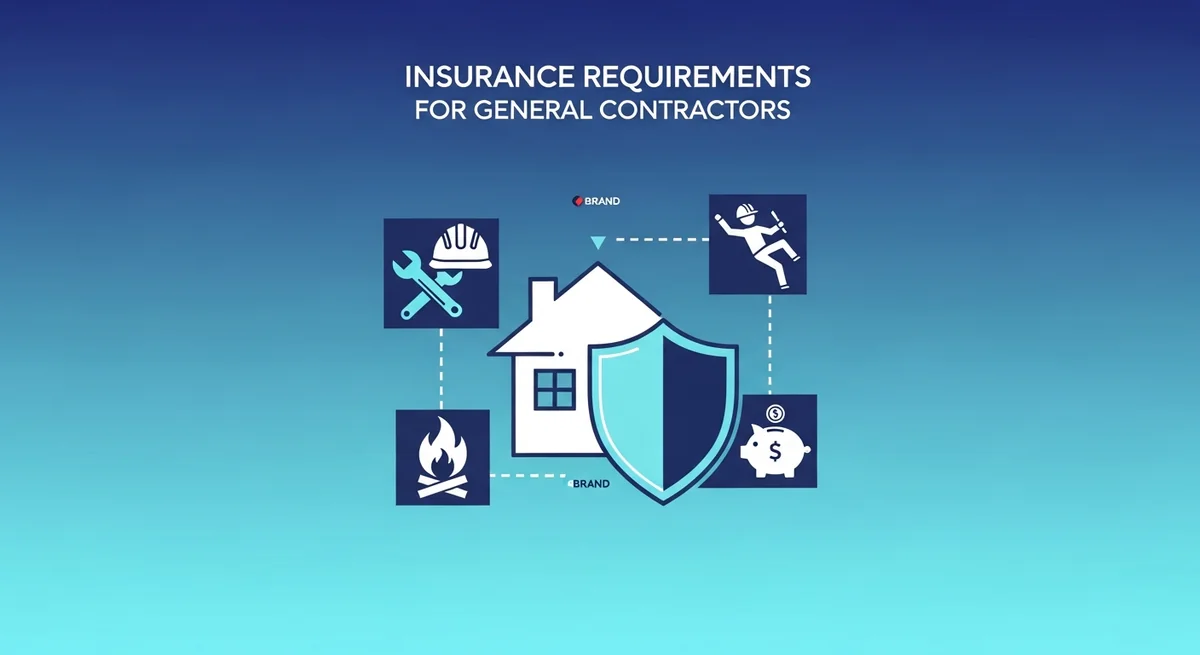
Insurance Requirements for General Contractors
General contractors face unique liability exposures that require comprehensive insurance coverage. Whether you're building residential homes, commercial properties, or managing multiple subcontractors, understanding insurance requirements for general contractors is essential to protect your business, comply with contracts, and avoid costly gaps in coverage.