HubSpot Vendor Compliance: Complete Setup Guide
Managing vendor compliance in HubSpot can transform your risk management process from chaotic to controlled. This comprehensive guide walks you through setting up HubSpot vendor compliance tracking, from initial configuration to advanced automation. You'll learn how to create custom properties, build automated workflows, and maintain complete visibility into your vendor insurance requirements—all within your existing HubSpot environment.
HubSpot Vendor Compliance: Complete Setup Guide
Managing vendor compliance in HubSpot can transform your risk management process from chaotic to controlled. This comprehensive guide walks you through setting up HubSpot vendor compliance tracking, from initial configuration to advanced automation. You'll learn how to create custom properties, build automated workflows, and maintain complete visibility into your vendor insurance requirements—all within your existing HubSpot environment.
Whether you're a property manager tracking contractor certificates or a procurement team managing hundreds of suppliers, this guide provides actionable steps to streamline your HubSpot vendor compliance process and reduce risk exposure.
What You'll Learn About HubSpot Vendor Compliance
- How to configure HubSpot custom properties for insurance tracking
- Step-by-step workflow automation for certificate collection
- Best practices for maintaining vendor compliance records
- Common mistakes that compromise your compliance system
- Integration options to enhance HubSpot's native capabilities
Understanding HubSpot Vendor Compliance Fundamentals
HubSpot vendor compliance refers to using HubSpot CRM to track, manage, and enforce insurance requirements for your business partners, contractors, and suppliers. While HubSpot wasn't originally designed as a compliance tool, its flexibility makes it a viable option for organizations already invested in the platform.
Why Use HubSpot for Vendor Compliance?
Organizations choose HubSpot for vendor compliance management for several strategic reasons. First, it centralizes vendor data in one system your team already uses daily. Second, it leverages existing workflows and automation capabilities. Third, it eliminates the need for separate spreadsheets or manual tracking systems that create data silos.
However, understanding the limitations is equally important. HubSpot lacks specialized features like ACORD form parsing, automated certificate verification, and industry-specific compliance rules. For basic tracking needs, HubSpot works well. For complex requirements, you may need dedicated solutions as explained in our guide on Track Certificate Of Insurance Hubspot which covers both native HubSpot approaches and integration options.
Core Components of HubSpot Vendor Compliance
A functional HubSpot vendor compliance system requires four essential components working together:
- Custom Properties: Fields that store insurance data like policy numbers, coverage amounts, and expiration dates
- Workflows: Automated sequences that trigger reminders, follow-ups, and status updates
- Document Storage: File attachment system for storing certificates of insurance
- Reporting Dashboard: Visual displays showing compliance status across your vendor base
Understanding these fundamentals helps you build a system that scales with your business and maintains compliance without creating administrative burden.
Step-by-Step HubSpot Vendor Compliance Setup
Setting up HubSpot vendor compliance requires methodical configuration. Follow these detailed steps to build a functional tracking system that meets your organization's needs.
Step 1: Create Custom Properties for Insurance Data
Navigate to Settings > Properties > Company Properties in HubSpot. Click "Create Property" and add these essential fields for tracking vendor insurance:
- General Liability Coverage Amount (Number field, formatted as currency)
- General Liability Expiration Date (Date picker field)
- Workers Compensation Expiration (Date picker field)
- Certificate of Insurance Status (Dropdown: Current, Expiring Soon, Expired, Not Received)
- Additional Insured Status (Checkbox field)
- Insurance Carrier Name (Single-line text field)
- Last Certificate Review Date (Date picker field)
- Compliance Notes (Multi-line text field)
For each property, set field-level permissions to control who can view and edit sensitive insurance information. Consider creating a property group called "Vendor Compliance" to organize these fields together on company records.
Step 2: Build Certificate Request Workflows
Go to Automation > Workflows and create a new company-based workflow. Name it "New Vendor Certificate Request" and set the enrollment trigger to "Company is created" with a filter for "Company Type equals Vendor."
Add these workflow actions in sequence:
- Set property: Certificate of Insurance Status = "Not Received"
- Delay: 1 day (allows time for initial vendor setup)
- Send email: Certificate request template to vendor contact
- Create task: Assign to compliance manager to follow up in 7 days
- Branch logic: If certificate not received after 7 days, send follow-up email
Your certificate request email should clearly state your insurance requirements. Reference our detailed breakdown at Understanding Coi Requirements to ensure you're requesting appropriate coverage levels for your industry and risk profile.
Step 3: Configure Expiration Alert Workflows
Create a second workflow named "Certificate Expiration Alerts" with enrollment triggers based on date properties. Set the trigger to "General Liability Expiration Date is less than 30 days from now."
Configure these automated actions:
- 30 days before expiration: Update status to "Expiring Soon" and send renewal request email
- 14 days before expiration: Send urgent renewal reminder to vendor and internal team
- 7 days before expiration: Create high-priority task for compliance manager
- On expiration date: Update status to "Expired" and notify procurement team
Repeat this workflow structure for each insurance type you track. This proactive approach prevents lapses that could expose your organization to liability risks.
Step 4: Set Up Document Management System
HubSpot allows file attachments on company records, but organization is critical. Create a standardized naming convention for uploaded certificates: "[VendorName]_COI_[ExpirationDate].pdf"
In the company record's "Attachments" section, create folders for different document types: Current Certificates, Expired Certificates, Additional Insured Endorsements, and Waiver of Subrogation forms. This structure makes auditing and retrieval significantly easier.
When a new certificate arrives, immediately update the relevant date fields and status properties. This manual step is where many HubSpot compliance systems break down—consider the time investment required compared to automated solutions detailed in How To Automate Coi Tracking for organizations managing more than 50 vendors.
Step 5: Create Compliance Dashboard and Reports
Navigate to Reports > Dashboards and create a new dashboard called "Vendor Compliance Overview." Add these critical reports:
- Compliance Status Breakdown: Pie chart showing distribution of Current, Expiring Soon, Expired, and Not Received statuses
- Certificates Expiring This Quarter: Table report filtered by expiration date range
- Non-Compliant Vendors: List of companies with expired or missing certificates
- Certificate Collection Timeline: Line graph showing certificate collection trends over time
Schedule this dashboard to email stakeholders weekly. Regular visibility drives accountability and ensures compliance issues don't slip through the cracks.
Best Practices for HubSpot Vendor Compliance Management
Implementing HubSpot vendor compliance is just the beginning. These proven best practices help you maintain system effectiveness and prevent compliance gaps over time.
Standardize Your Certificate Requirements
Create vendor tiers with specific insurance requirements for each level. For example, Tier 1 vendors (high-risk contractors) might require $2 million general liability, workers compensation, and additional insured status. Tier 2 vendors (low-risk suppliers) might only need $1 million general liability.
Document these requirements in a company-wide policy and add a "Vendor Tier" property in HubSpot. This standardization eliminates confusion and ensures consistent enforcement across departments. Understanding proper coverage amounts is essential—review What Is General Liability Insurance to establish appropriate minimum requirements for your organization.
Implement Regular Audit Schedules
Schedule quarterly compliance audits using HubSpot's reporting tools. Create a saved filter for "Certificate Status equals Expired" and review every record. During audits, verify that uploaded certificates match the data entered in custom properties—manual data entry errors are common.
Assign audit responsibilities to specific team members with clear deadlines. Use HubSpot tasks to track audit completion and document findings in the Compliance Notes field for each vendor record.
Train Your Team on Certificate Verification
Not everyone knows how to read a certificate of insurance properly. Provide training on key verification points: checking that your company is listed as certificate holder, confirming additional insured endorsements are included, and verifying coverage amounts meet requirements.
Create a verification checklist and require team members to complete it before updating a vendor's compliance status to "Current." Our comprehensive resource at How To Read Acord 25 Form provides detailed guidance on interpreting the most common certificate format.
Maintain Clear Communication Channels
Establish dedicated email addresses for certificate submissions (like certificates@yourcompany.com) and configure HubSpot email integration to automatically log these communications to the appropriate company record. This creates an audit trail and prevents certificates from getting lost in individual inboxes.
Use HubSpot's email templates to ensure consistent messaging when requesting certificates or following up on expirations. Include specific instructions about where to send documents and what information must be included.
Leverage Integration Opportunities
While HubSpot handles basic tracking, specialized compliance platforms can integrate with HubSpot to add advanced capabilities like automated ACORD form parsing, real-time verification with insurance carriers, and instant compliance status updates synced back to HubSpot.
Evaluate whether your compliance volume justifies dedicated software. Organizations tracking more than 100 vendors typically benefit from specialized solutions that reduce manual effort while maintaining HubSpot as the central vendor database.
Common HubSpot Vendor Compliance Mistakes to Avoid
Even well-intentioned compliance systems fail when organizations make these preventable errors. Learn from common pitfalls to build a more resilient HubSpot vendor compliance process.
Mistake 1: Relying Solely on Manual Data Entry
Manually typing certificate information from PDF documents into HubSpot properties creates inevitable errors. Transposed numbers, incorrect dates, and missed endorsements compromise your compliance data integrity. One study found manual data entry error rates between 1-4%, which translates to 10-40 incorrect records in a database of 1,000 vendors.
Implement double-verification processes where a second team member spot-checks entries, or consider OCR and parsing tools that can extract data from certificates automatically. The time investment in accuracy pays dividends in reduced liability exposure.
Mistake 2: Ignoring Certificate Authenticity Verification
Accepting certificates at face value without verification is dangerous. Insurance fraud is more common than most organizations realize, with some vendors submitting falsified or altered certificates to win contracts. Your HubSpot system should include a verification step where someone contacts the insurance agency directly to confirm coverage.
Add a custom property called "Certificate Verified" with options for Verified, Pending Verification, and Failed Verification. Create a workflow that automatically assigns verification tasks when new certificates are uploaded.
Mistake 3: Setting Insufficient Expiration Lead Times
Sending renewal reminders only 7-10 days before expiration doesn't allow enough time for vendors to respond, especially if their insurance is also expiring. Insurance renewals often take 30-45 days to process, particularly for specialized coverage or vendors with claims history.
Configure your HubSpot workflows to begin renewal outreach 60 days before expiration, with escalating reminders at 45, 30, and 14 days. This timeline significantly reduces the number of vendors who lapse into non-compliance.
Mistake 4: Failing to Track Additional Insured Status
Many organizations track whether certificates are current but fail to verify that their company is actually listed as an additional insured on the policy. This distinction is critical—being a certificate holder provides notification of cancellation, but additional insured status extends actual liability coverage to your organization.
Create separate properties for "Certificate Holder Status" and "Additional Insured Status" in HubSpot. Require both to be confirmed before marking a vendor as compliant. Understanding this distinction is fundamental to effective risk management, as explained in What Is Additional Insured which breaks down the legal and practical implications.
Mistake 5: Neglecting Mobile Access and Remote Teams
If field managers or procurement teams can't easily access compliance information from mobile devices, your system creates bottlenecks. Vendors show up on-site with expired insurance, and managers have no way to verify status without returning to their desk.
Ensure your HubSpot mobile app configuration includes compliance properties in the company record view. Create saved filters for "Vendors on Site Today" that mobile users can quickly access to check real-time compliance status.
Key Takeaways for HubSpot Vendor Compliance Success
- HubSpot vendor compliance requires custom properties for insurance data, automated workflows for reminders, and organized document storage
- Begin certificate renewal outreach 60 days before expiration to prevent compliance gaps
- Verify certificates directly with insurance carriers—don't rely solely on vendor-submitted documents
- Track both certificate holder and additional insured status separately for complete protection
- Standardize insurance requirements by vendor tier to ensure consistent enforcement
- Conduct quarterly compliance audits to catch data entry errors and expired certificates
- Consider specialized integrations when managing more than 100 vendors to reduce manual effort
- Create compliance dashboards with real-time visibility for stakeholders across your organization
Related Resources
- How to Track Certificate of Insurance in HubSpot — Complete implementation guide with workflow templates and custom property configurations. Track Certificate Of Insurance Hubspot
- Manual vs Automated COI Tracking — Cost-benefit analysis comparing HubSpot manual tracking to specialized automation platforms. Manual Vs Automated Coi Tracking
- Understanding COI Requirements — Essential guide to establishing appropriate insurance requirements for your vendor base. Understanding Coi Requirements
- How to Verify a Certificate of Insurance — Step-by-step verification process to confirm certificate authenticity and coverage details. How To Verify Certificate Of Insurance
- New Vendor Onboarding Insurance Checklist — Complete checklist for collecting and verifying insurance during vendor onboarding. Vendor Onboarding Insurance Checklist
Frequently Asked Questions About HubSpot Vendor Compliance
Can HubSpot automatically read certificate of insurance documents?
No, HubSpot does not have native OCR or document parsing capabilities for certificates of insurance. You must manually review uploaded certificate PDFs and enter the relevant data into custom properties. This manual process is time-consuming and error-prone, especially for organizations managing large vendor portfolios. Third-party integrations can add automated parsing capabilities that extract data from ACORD forms and populate HubSpot fields automatically, significantly reducing manual effort and improving accuracy.
How many vendors can I realistically track in HubSpot for compliance?
HubSpot can technically handle unlimited vendor records, but practical management becomes challenging above 50-100 vendors due to manual data entry requirements. Each certificate requires 5-10 minutes to review and enter data, meaning 100 vendors equals 8-16 hours of work per compliance cycle. Organizations tracking more than 100 vendors typically benefit from dedicated compliance platforms that automate data extraction and verification while syncing status updates back to HubSpot. Consider your team's capacity and the value of their time when deciding whether HubSpot alone meets your needs.
What HubSpot subscription level do I need for vendor compliance tracking?
You need at minimum HubSpot Professional to access custom properties, workflows, and automation features essential for compliance tracking. The free HubSpot CRM lacks workflow automation, which means you cannot set up automatic expiration reminders or certificate request sequences. HubSpot Starter includes limited workflow capabilities but restricts the number of automated actions. Professional tier provides sufficient functionality for most compliance use cases, including unlimited custom properties, complex workflows with branching logic, and comprehensive reporting dashboards.
How do I handle vendors with multiple insurance policies in HubSpot?
Create separate custom properties for each insurance type your vendors must carry. For example, create distinct date fields for General Liability Expiration, Workers Compensation Expiration, Commercial Auto Expiration, and Professional Liability Expiration. This approach allows you to track each policy independently and trigger separate workflows for each coverage type. Avoid using a single "Insurance Expiration" field, as this prevents you from monitoring multiple policies with different renewal dates. For vendors with complex insurance portfolios including umbrella policies or specialized coverage, consider adding a multi-line text field for "Additional Coverage Notes" to document supplementary policies.
Can I restrict access to vendor compliance data in HubSpot?
Yes, HubSpot Professional and Enterprise tiers allow field-level permissions that restrict which users can view or edit specific properties. Navigate to Settings > Users & Teams > Permissions and configure property permissions for your compliance fields. You can create permission sets that allow compliance managers full access while giving sales teams read-only access or no access at all. This protects sensitive insurance information and ensures only trained personnel can modify compliance status. Additionally, use HubSpot's team structure to route compliance-related tasks and notifications only to authorized team members responsible for vendor risk management.
Conclusion: Building Sustainable HubSpot Vendor Compliance
HubSpot vendor compliance provides a centralized approach to managing insurance requirements within your existing CRM ecosystem. By implementing custom properties, automated workflows, and regular audit processes, you create visibility into vendor risk that protects your organization from liability exposure.
However, recognize that HubSpot's generic CRM structure requires significant manual effort to maintain compliance data accuracy. As your vendor portfolio grows, evaluate whether the time investment in manual certificate review and data entry justifies continuing with a DIY approach versus adopting specialized compliance tools that integrate with HubSpot.
The most successful HubSpot vendor compliance systems combine thoughtful configuration, disciplined processes, and realistic assessment of when automation becomes necessary. Start with the fundamentals outlined in this guide, measure your team's time investment, and scale your approach as your compliance needs evolve.
Ready to streamline your vendor compliance process beyond HubSpot's native capabilities? Start your free trial of PolicyManagerHub today and automate certificate tracking with AI-powered ACORD form parsing, real-time expiration monitoring, and seamless HubSpot integration.
CoverLedger Editorial Team
Expert insights on insurance compliance, COI tracking, and risk management from the CoverLedger team.
Related Articles

Construction Project Insurance Coverage Layers
Construction projects involve significant financial risk, complex liability exposures, and multiple parties working simultaneously. Understanding construction project insurance coverage layers is essential for protecting your business from catastrophic losses. This comprehensive guide explains how insurance layers work, why they matter, and how to structure adequate protection for projects of any size.
Subcontractor Insurance: What GCs Need to Verify
As a general contractor, you face significant liability exposure when subcontractors work on your projects. Without proper insurance verification, you could be held responsible for accidents, property damage, or injuries caused by subs. This comprehensive guide covers everything about subcontractor insurance: what GCs need to verify to protect their business, reduce risk, and maintain compliance.
Insurance Requirements for General Contractors
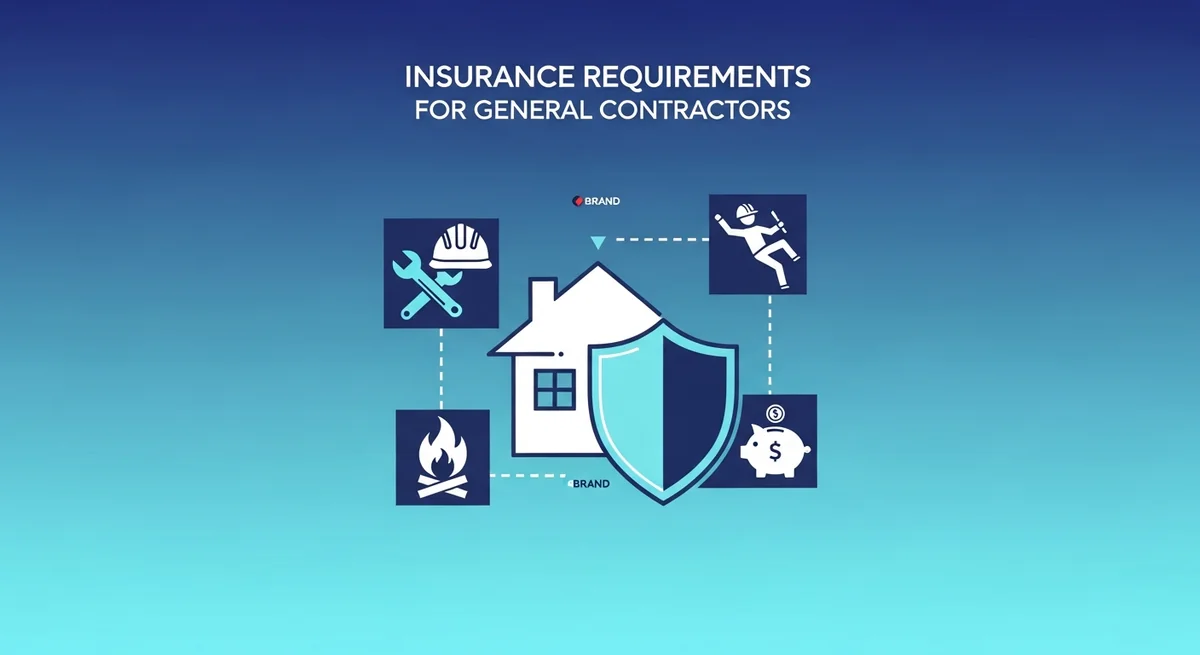
General contractors face unique liability exposures that require comprehensive insurance coverage. Whether you're building residential homes, commercial properties, or managing multiple subcontractors, understanding insurance requirements for general contractors is essential to protect your business, comply with contracts, and avoid costly gaps in coverage.